Blog

SharePoint vs OneDrive: A Practical Guide to File Storage in Microsoft 365

Teodora Vilceanu

July 6, 2026

One of the most common issues in Microsoft 365 environments and cloud storage solutions is surprisingly simple: “Should this file be saved in OneDrive or SharePoint?”

The result is predictable: documents end up duplicated, stored in the wrong place, or shared in ways that make it difficult to know what the most up-to-date version actually is.

The challenge is not that the tools are complex, but that they are often used without a clear understanding of how they are meant to work together and the different purposes they serve within Microsoft 365. That’s where most of the confusion starts.

Different Tools for Different Jobs

The simplest way to distinguish them is this:

  • OneDrive is designed for individual work: files you are actively creating or managing on your own.
  • SharePoint is designed for shared work: documents that need to be accessible, structured, and maintained by a team or organization.

That distinction drives everything else.


What is OneDrive?

OneDrive is designed for personal storage within Microsoft 365. It gives users access to files across devices, making documents available whether working from a laptop, desktop, or remotely.

Unlike shared systems, OneDrive is tied to the individual user. Files stored there are primarily owned and managed at a personal level, even when they are shared with others.


Key Features of OneDrive

OneDrive includes a set of capabilities that support flexible and secure individual work:

  • Cross-device access: files are available across devices without relying on local storage, making it easier to switch between work environments
  • Sync and backup protection: files can be automatically backed up and synchronized, reducing the risk of version mismatch between devices
  • Controlled file sharing: users can share files with others using links and defined permissions for viewing or editing
  • Real-time collaboration: multiple users can work simultaneously on Office documents such as Word, Excel, and PowerPoint.
  • Version history and recovery: previous versions of files can be restored, and deleted items can be recovered within a retention period
  • Offline access: files can be accessed and edited offline, with changes syncing once the device reconnects
  • Mobile scanning for documents: physical documents can be digitized and uploaded directly using mobile scanning

Common Use Cases

OneDrive is typically used for day-to-day work that is still in progress, before it becomes part of a shared team workflow.

  • Drafting and developing documents such as proposals, reports, or internal notes
  • Sharing early-stage work with colleagues for feedback and input
  • Collaborating on documents in real time during active development
  • Temporarily storing files before they are moved into a shared team environment


What is SharePoint?

SharePoint is the collaborative workspace within Microsoft 365, designed for team and organizational use. It provides a central location where documents, information, and resources can be stored, managed, and accessed by multiple users.

Unlike OneDrive, SharePoint is not tied to an individual. It is built around shared ownership, where content belongs to a team, department, or organization rather than a single user.


Key Features of SharePoint

SharePoint allows organizations to centralize content, manage access, and collaborate on documents across teams.

  • Centralized document storage: files are stored in shared libraries that can be accessed by defined teams or groups
  • Team-based access and permissions: access is managed at site or library level to ensure consistent control across teams
  • Structured collaboration: multiple users can work on shared documents within a defined team environment
  • Version control and document history: changes are tracked centrally, allowing teams to manage document evolution over time
  • Integration with workflows and processes: supports structured business processes such as approvals, governance, document lifecycle management, and the ability to automate business processes across Microsoft 365
  • Enterprise-level search and organization: content is indexed and organized to make information easier to find across the organization
  • Intranet and knowledge sharing: can be used to host internal communication pages, resources, and company-wide information


Common Use Cases

SharePoint is typically used for content that needs to be shared, structured, and managed across teams or the wider organization.

  • Cross-team project work involving multiple departments working in a single shared space on the same documents
  • Company-wide intranet content such as policies, onboarding materials, templates, and internal announcements
  • Controlled document management for formal content like contracts, procedures, and compliance documentation
  • Workflow-based processes such as approvals and reviews integrated across Microsoft 365 tools
  • Long-term team collaboration spaces where shared project content is maintained and updated over time

SharePoint vs OneDrive Comparison

The main challenge in Microsoft 365 is not that OneDrive and SharePoint are similar, but that they are often used interchangeably in day-to-day work.

To use them effectively, it is less about understanding what each tool does, and more about understanding the role each one plays in how information moves through an organization - from individual work, to team collaboration, to shared knowledge.
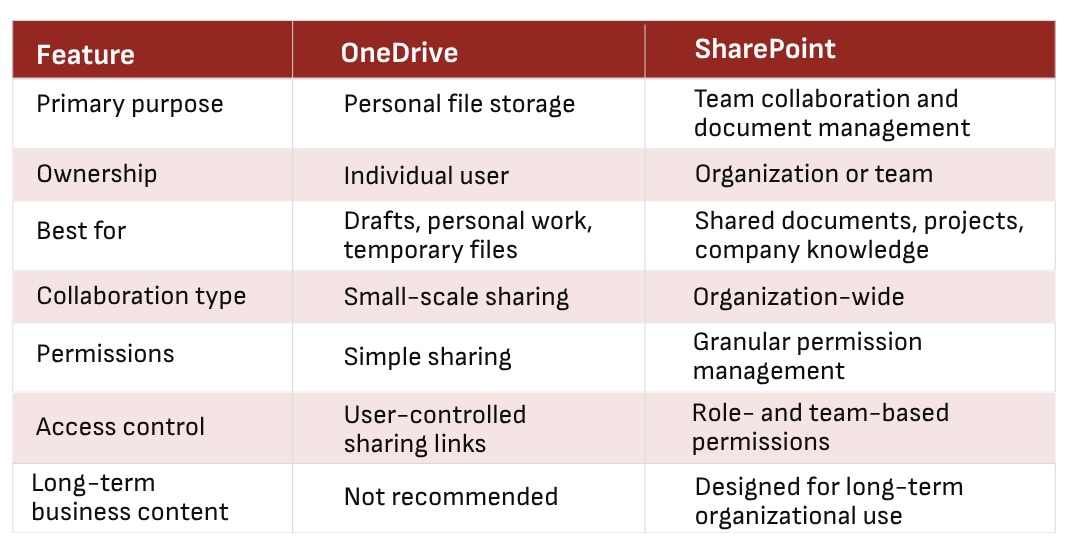
A comparison chart outlining the key differences between sharepoint and onedrive by features like primary purpose, ownership, and permissions

File Storage Guide

A simple way to decide where a file belongs is to think about how long it needs to remain accessible and who it is intended for.

Use OneDrive for personal or short-term work in progress, while SharePoint is better suited to shared or long-term organizational content.
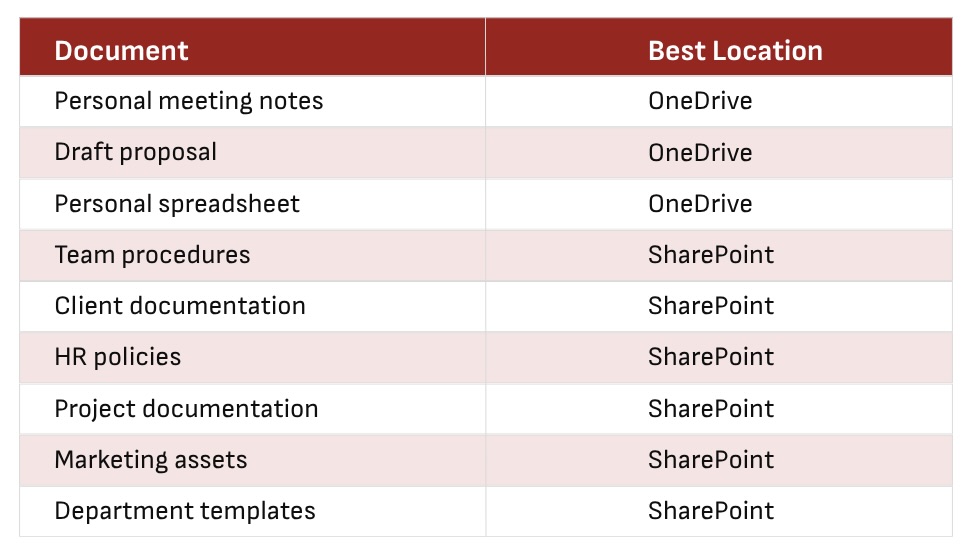
A reference table for file management, matching specific document types to the best document storage solutions

Making Microsoft 365 Work Better

In Microsoft 365, OneDrive and SharePoint are often compared, but they are not competing tools. OneDrive supports individual work in progress, while SharePoint supports shared, structured content across teams and the organization.

When the distinction is applied correctly, it reduces confusion and improves overall productivity by helping teams manage and access information more effectively.

At Roca Networks, we help organizations build Microsoft 365 environments where information is organized, accessible, and governed - making collaboration simpler, more secure, and more efficient.